In 2012, Apple introduced Fusion Drive, a storage technology that combined two physical drives into a single logical volume. The concept was simple: SSDs are fast but expensive and offer limited capacity, while HDDs are slower but inexpensive and provide significantly more storage. Apple asked a simple question—why not combine the strengths of both?
The result was a storage solution where macOS automatically places the operating system, applications, and frequently used documents on the SSD, while infrequently accessed photos, videos, archives, and backups remain on the HDD. This optimization happens entirely in the background without any user intervention.
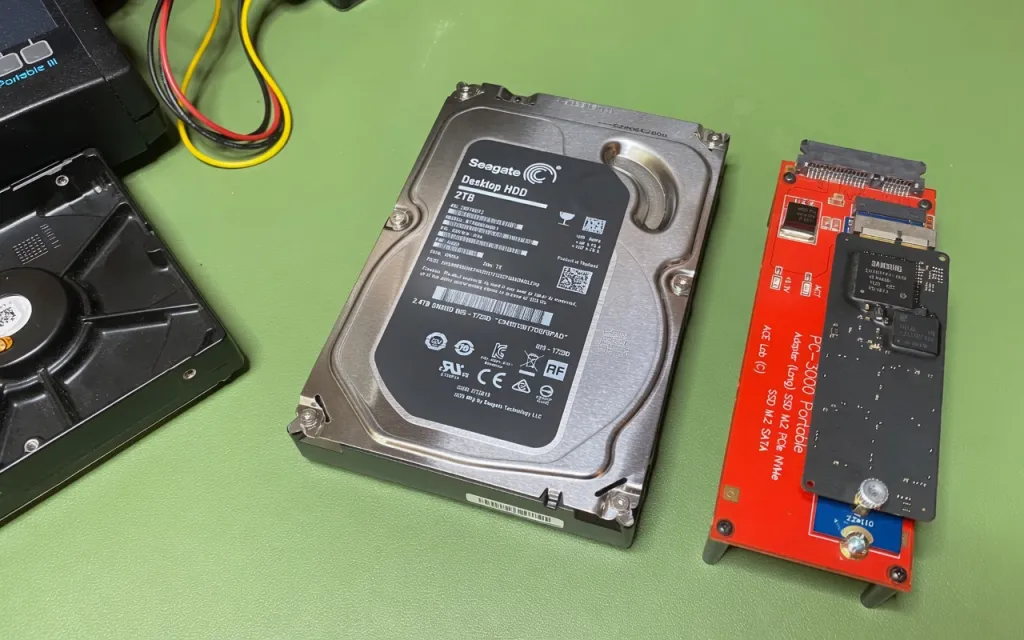
HFS+ and APFS – Two Generations of Fusion Drive
Fusion Drive existed in two technological generations:
- Core Storage + HFS+
- APFS Fusion
The first generation of Fusion Drive relied on Core Storage, Apple's Logical Volume Manager (LVM). Introduced in Mac OS X Lion (10.7), Core Storage acted as a software layer between the physical disks and the HFS+ file system, allowing multiple physical disks or partitions to be combined into a single logical volume.
Core Storage was responsible for migrating data between the SSD and HDD. Data migration occurred in approximately 128 KB blocks and was managed entirely by the operating system.
Beginning with macOS High Sierra (10.13) Apple largely replaced Core Storage with APFS, introducing a new storage container architecture. In APFS-based Fusion Drives, Core Storage is no longer used. Instead, APFS itself manages multiple physical storage devices.
The SSD and HDD remain separate GPT-formatted disks with their own partition tables. Each contains an APFS Physical Store, and both Physical Stores are linked together into a single APFS container, which macOS presents as a single logical block device (a synthesized disk). This relationship is maintained through APFS metadata and UUID identifiers.
Unlike the original implementation, APFS also optimizes metadata placement. File system metadata and frequently accessed data are preferentially stored on the SSD, improving directory traversal, Spotlight indexing, and overall file access performance.
Metadata Distribution – Why Both Drives Are Equally Important
In an APFS Fusion configuration, a significant portion of the file system metadata resides on the SSD tier. This includes Object Maps, B-trees, catalogs, and other critical file system indexes.
This does not mean that all metadata is always stored on the SSD. APFS replicates and organizes metadata according to its own algorithms. However, in practice, the SSD contains a substantial amount of metadata essential for reconstructing the logical file system.
As a result, the SSD is much more than a simple cache. It contains structural information that is often indispensable for rebuilding the file system.
A useful analogy is a book's table of contents. The book may still exist without it, but finding a specific chapter becomes extremely difficult.
If one of the Fusion Drive disks fails, reconstructing the entire file system is often impossible.
Professional data recovery laboratories can sometimes recover a substantial amount of data even when one drive is partially damaged. However, this requires specialized software, extensive knowledge of APFS internals, and often significant manual analysis of the file system metadata.
Practical Recommendations
If you are repairing an iMac with Fusion Drive:
- Always label the SSD and HDD as a matched pair.
- Keep both drives together.
- If one drive is replaced, retain the original companion drive.
If you are sending an iMac for repair, ask the service provider: Will both original drives be preserved and returned to me?
If you are performing data recovery, determine:
- whether the Mac originally used Fusion Drive;
- whether both drives are available;
- whether the drives have accidentally been mixed with drives from another computer.
Identifying a Fusion Drive
In Terminal:
diskutil listOlder HFS+-based Fusion Drives will typically show:
Apple_CoreStorageAPFS-based Fusion Drives will instead display:
APFS Container Scheme - SynthesizedAdditional information can be obtained with:
diskutil apfs listThis command displays both Physical Store devices and confirms that they belong to the same APFS container.
Data Recovery
When both drives are available, the typical recovery workflow is:
- Create complete forensic images of both drives.
- Mount the images in read-only mode.
- Reconstruct the Fusion container by combining both Physical Stores.
- Mount the reconstructed APFS container.
- Copy the recovered data to another storage device.
This is not a standard recovery procedure and generally requires specialized software capable of understanding APFS Fusion structures.
Conclusion
Fusion Drive is an elegant compromise between SSD performance and HDD capacity. To the user, it appears as a single disk, but in reality it is a single logical storage system built from two physical devices.
For this reason, the SSD and HDD should always be treated as an inseparable pair during hardware repairs and data recovery. Keeping both original drives together significantly increases the likelihood of a successful recovery if one of the devices later fails.
Resources: